Getting Started
.png)
Written by Tania Ferguson
Updated over
5 months ago
JournoLink helps businesses and PR agencies send press releases to journalists in the UK and access journalist requests for contributions to their articles.
Press releases are published in the business' press room and distributed via email to the Audiences you build with your chosen sectors, locations and topics of interest.
Journalist requests are available in Opportunities and you can receive recommended media requests via email by setting your preferences in Clients.
Navigating JournoLink
Clients: This is your area for managing your Business Profiles. In this section, you can add details about the company, edit your press room and choose your Industry and Topics of Interest for suggested journalist requests.
Audiences: In this section, you can segment the JournoLink distribution contact list to target your audience and upload and manage your own contacts.
Publish: This is your core area for managing your content and creating press releases. You can use your own content, ask AI to write it or order a professional copywriting service.
Analytics: Becomes available after the press release has been published and distributed. It provides information about how many journalists received your release, how many opened the email and the interactions with your press room.
Opportunities: Where you can find and reply to journalist’s media requests. If you click on All, you can see all the available journalists requests in addition to your recommendations.
Step-by-step guide to get you started
1- Create your Brand Business Profile
With the JournoLink for Press Release distribution, you will also get a press room, where all your press releases are automatically published. The press room will be available online when you send the first press release. So, the first thing you want to do before sending press releases is to update your brand and business Profile for the press room.
- To update a business profile, click on 'Clients' and then on 'Edit' to complete your Business Profile:
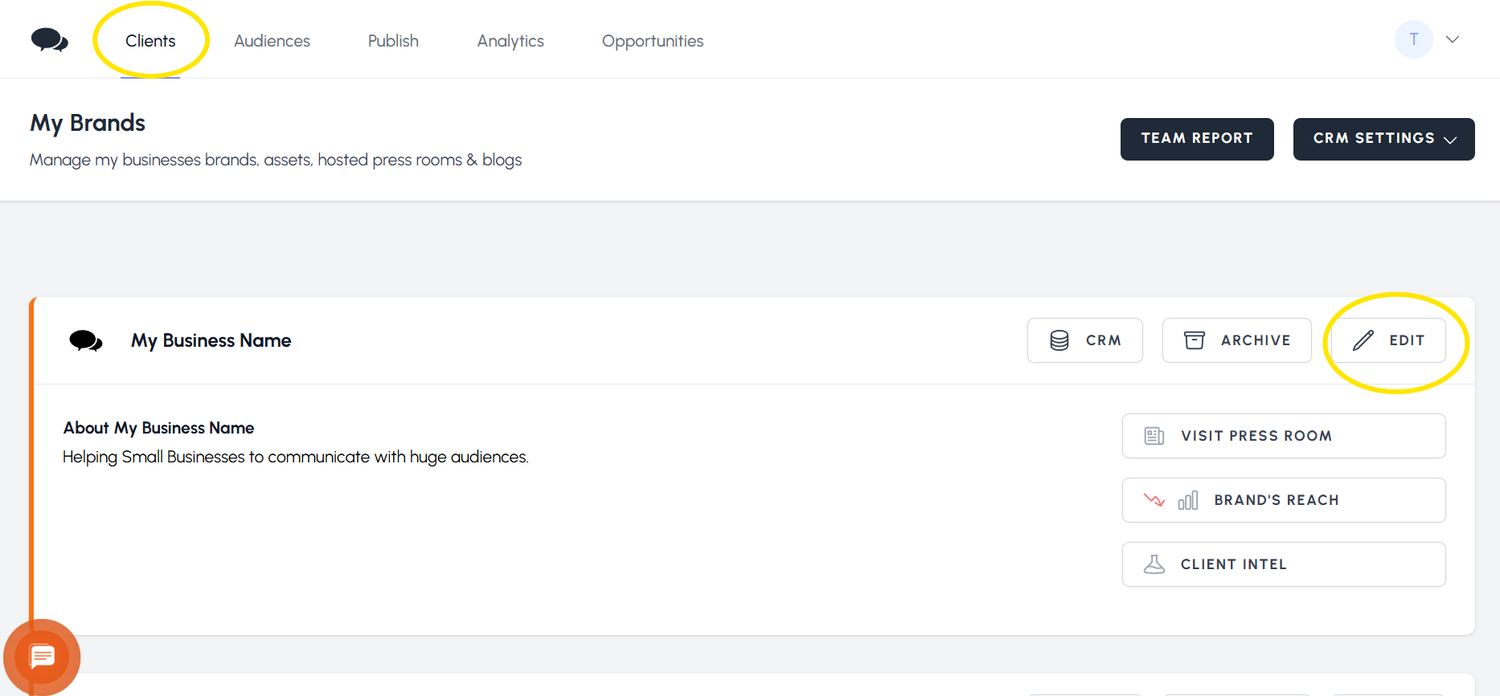
Don't forget to add contact details for the press to make it easier for them to know how to get in touch if they have questions or would like to set up an interview with you.
2- Set your preferences for Media Requests
Journalist Requests or Media Requests are created by journalists looking for a business to contribute to an article. To receive Media requests via email, you need to set your preferences for the types of Media Requests you would like to receive.
- This is done in 'Clients' - 'Edit'. Scroll down to the 'Business Interests' section and choose your Industry and Media Topics to start getting Media Requests via email.
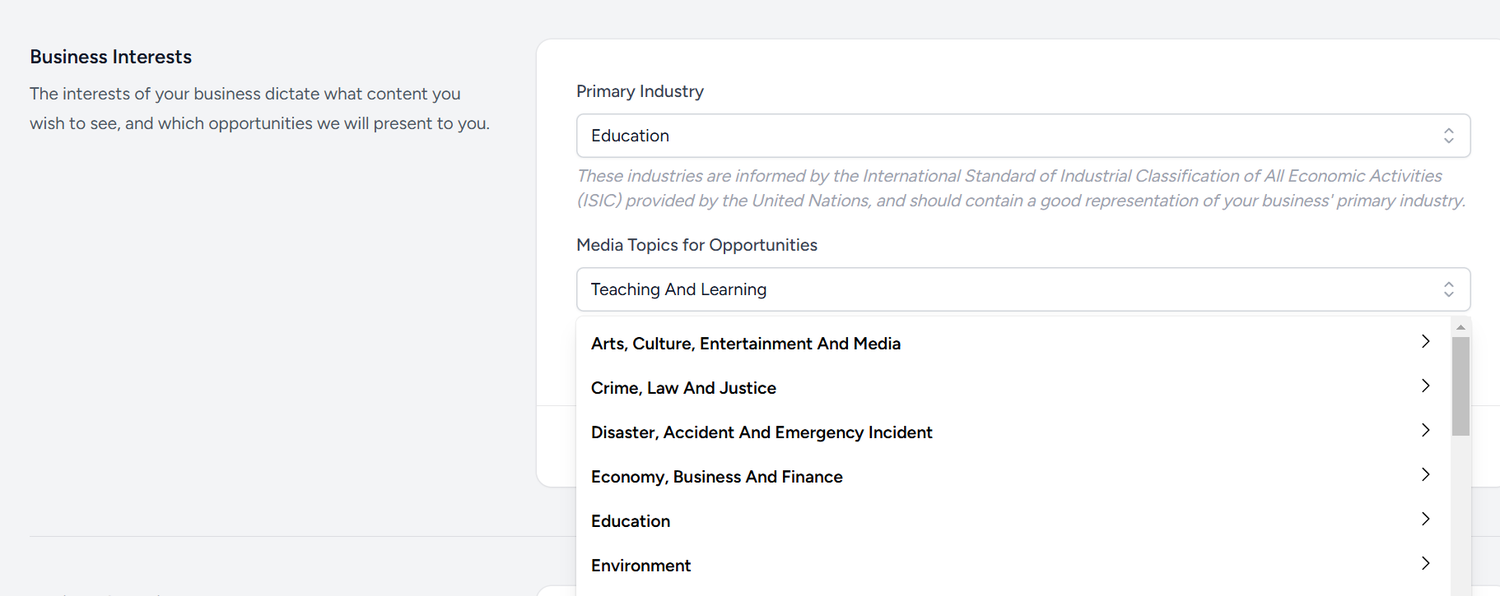
If you are a Multi-business or Agency user, you need to do the same for each of your Businesses or Clients.
3- Define your Audiences
Before you send your first press release, make sure you create your audiences to match the journalists you want to reach.
- To build your Audiences, click on 'Audiences' and then on 'Build an Audience':
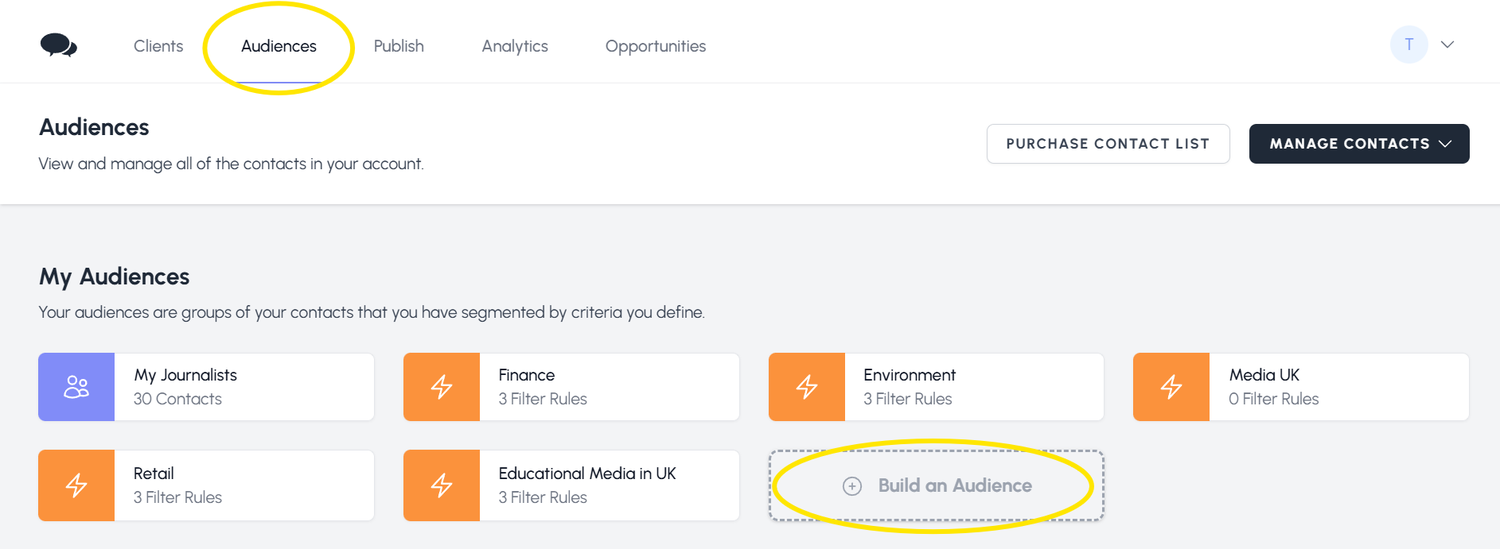
Give your audience a name and click on 'Our Journalists' to define the audiences from the JournoLink database:
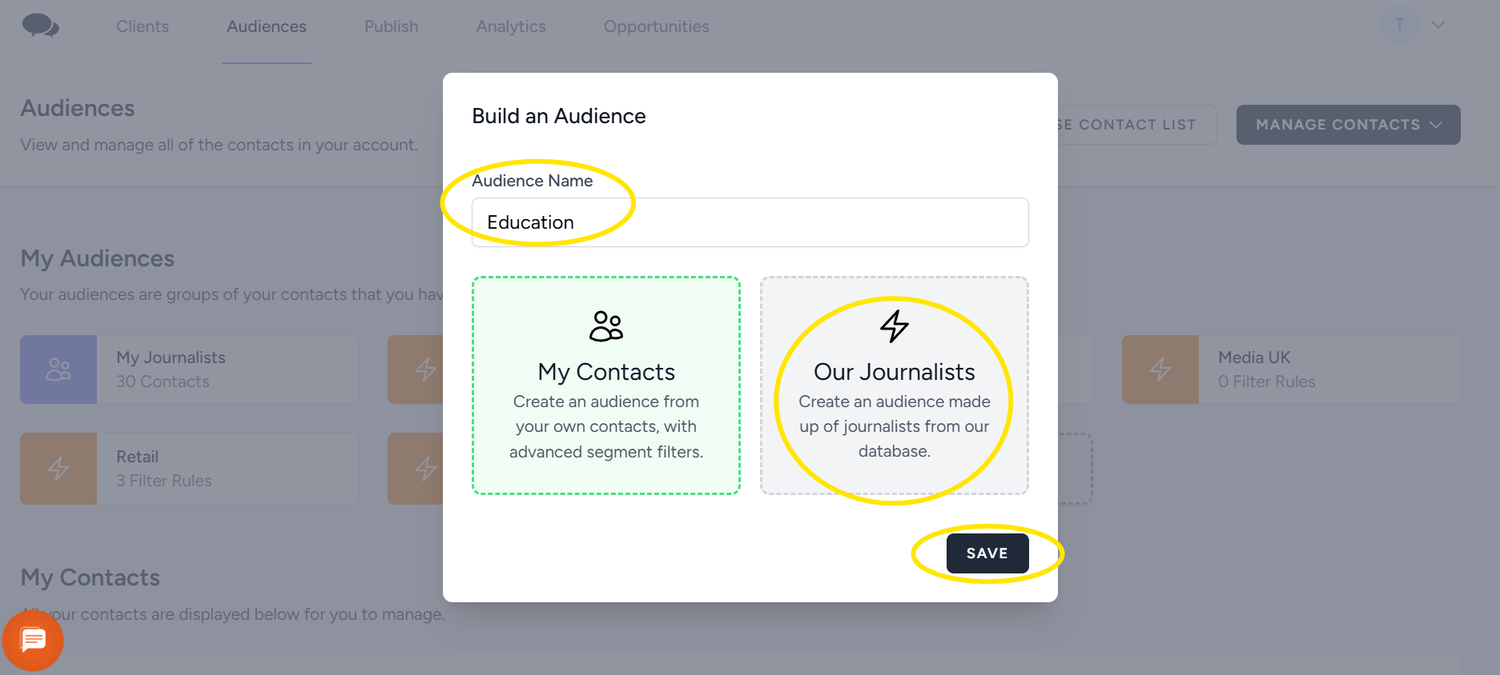
There are three filters for each segment to define the journalists who will receive your press release. We recommend having at least three different Audiences covering not only your sector but also your topic to ensure a broader reach. You can create an audience with Industry only or topic only.
If you want to use your own list of journalists as well as the JournoLink database, you need to upload your media list first.
4- Send a press release
Once your business profile and audiences are completed, you can start sending press releases from the 'Publish' section.
5- Remember to check the 'Opportunities' section often.
Click on 'All' to access all the available opportunities and reply to any media request that is relevant to you.
Want to see how it works? Watch this short video:
Did this answer your question?